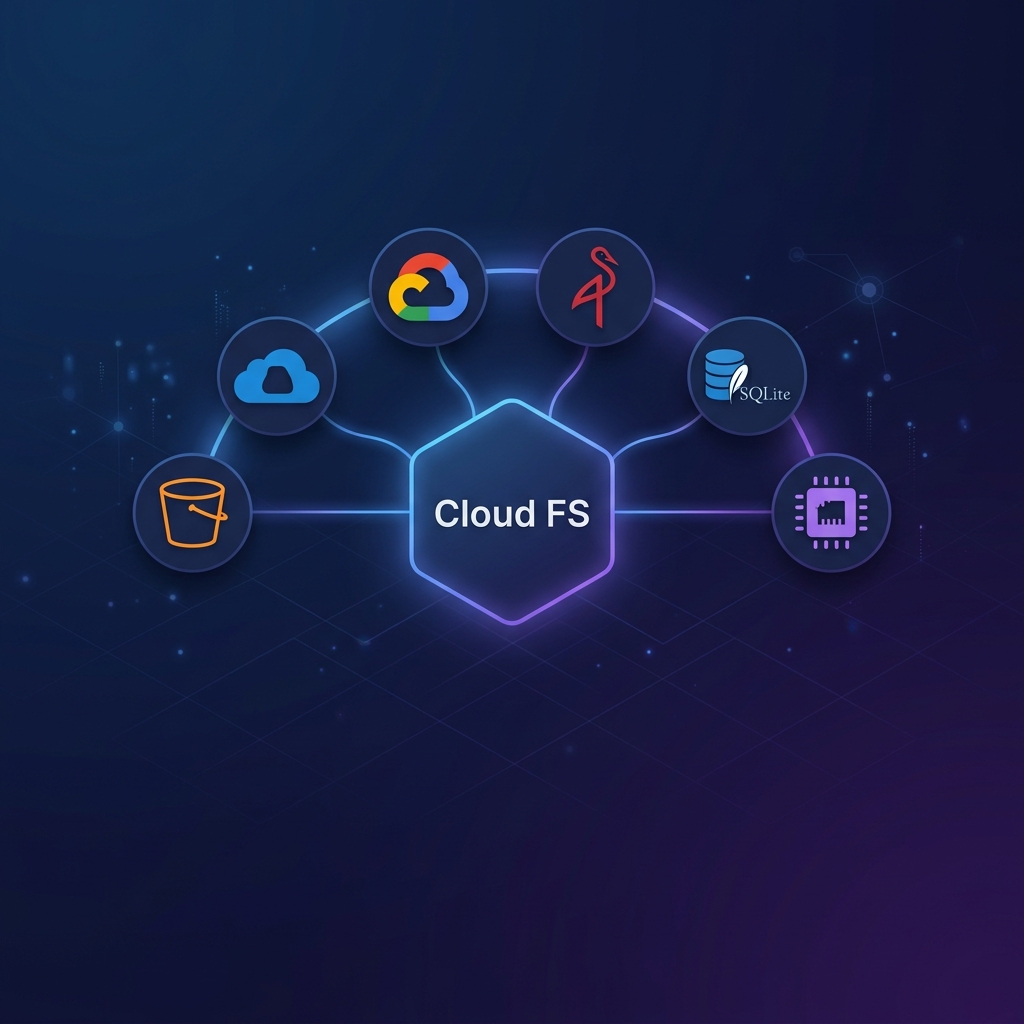
Interactive Shell (cloud-fs)
The cloud-fs binary provides a terminal-based interface for exploring and managing cloud storage without needing an MCP client. It is powered by node:readline and features a POSIX-like command set.
Launching the Shell
You can run the shell on-demand using npx or bunx:
# Connect to S3
npx -p @nogoo9/mcp-server-cloud-fs cloud-fs s3 s3://my-bucket

# Local SQLite
npx -p @nogoo9/mcp-server-cloud-fs cloud-fs sqlite sqlite://my-db --sqlite-db ./data.db

# In-memory demo with sample files
npx -p @nogoo9/mcp-server-cloud-fs cloud-fs memory mem://demo --seed-demo
Features
cd Navigation
Just like a standard shell, you can navigate directories. The prompt dynamically updates to show your current working directory (relative to the bucket root).
cloud-fs [demo]> cd src
cloud-fs [demo/src]> cd ..
cloud-fs [demo]> cd /
Path Resolution
All commands resolve paths relative to your current cwd.
ls datalooks in<root>/cwd/datals /datalooks in<root>/datals ..looks in the parent directory
Tab Completion
Press Tab to complete command names and file/directory paths. The completion is context-aware and respects your current working directory.
Persistent History
Your command history is saved to ~/.cloud-fs_history, allowing you to use arrow keys to recall previous commands across sessions.
Pipes & Redirects
The shell supports simple Unix-like piping and redirection:
# Filter JSON with jq
cat config.json | jq '.version'

# Redirect output to a file
echo "hello world" > greeting.txt

# Append output
date >> logs.txt
Commands
The shell includes 19 built-in commands:
| Command | Description |
|---|---|
ls [path] | List directory contents |
cd [path] | Change working directory |
cat <path> | Print file contents |
head <path> | Print first 10 lines |
tail <path> | Print last 10 lines |
cp <src> <dest> | Copy file |
mv <src> <dest> | Move file |
rm <path> | Remove file or empty directory |
mkdir <path> | Create directory |
touch <path> | Create empty file |
stat <path> | Show file metadata |
find [path] -name <pattern> | Find files by name |
grep <pattern> <path> | Search for pattern in files |
wc <path> | Count lines, words, and bytes |
du [path] | Show disk usage |
echo <text> | Print text |
tee <path> | Read from stdin and write to file and stdout |
diff <f1> <f2> | Compare two files |
jq <filter> | Process JSON from stdin |
help | Show list of commands |
exit / quit | Close the shell |
Configuration
The shell looks for a configuration file in:
cloud-fs.jsonin the current working directory~/.config/cloud-fs/config.json
CLI flags always take precedence over configuration file values.