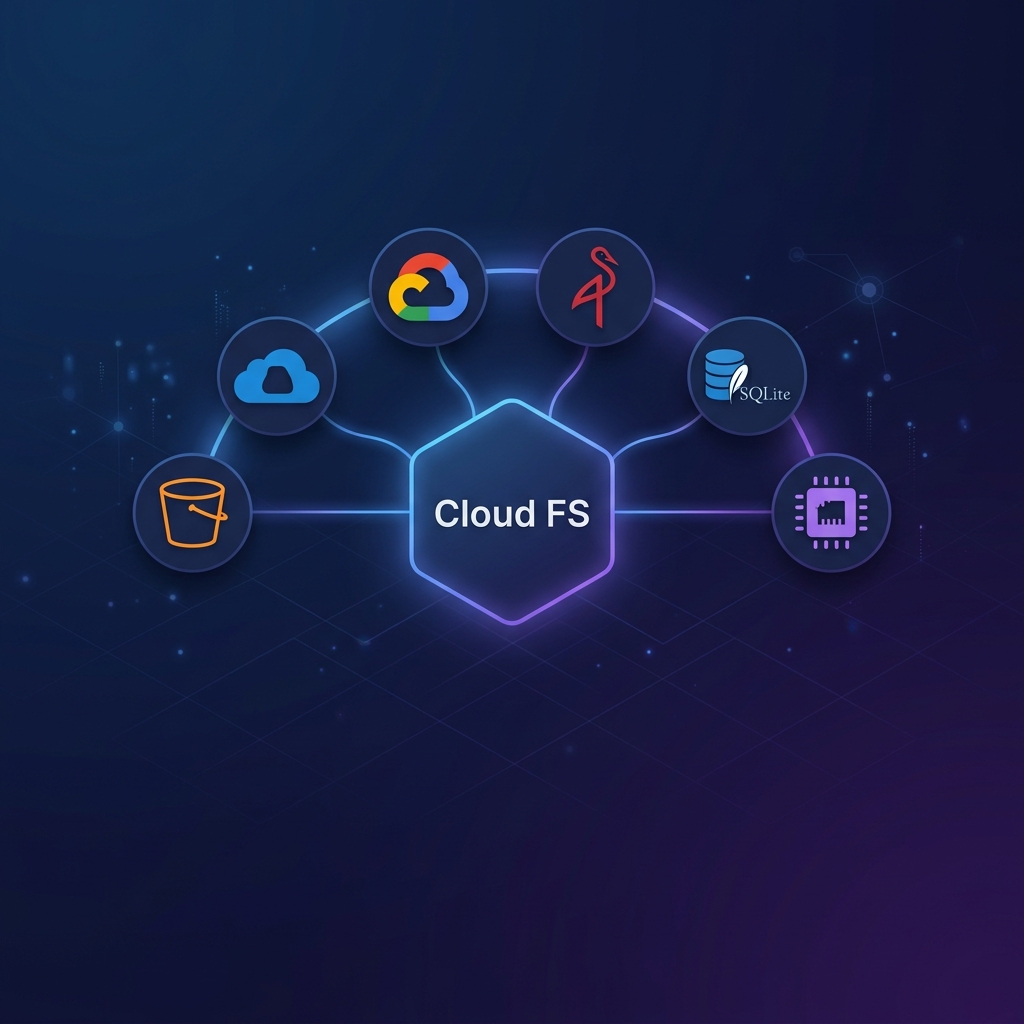
Provider Setup
Credentials are always sourced from SDK credential chains — never CLI flags. This keeps secrets out of command history and config files.
Each section below covers:
- Credential chain (how the SDK finds credentials)
- Required environment variables
.mcp.jsonconfiguration for MCP clients (Claude Desktop, Claude Code)- AI skill usage (the skill reads the
.mcp.jsonyou configure)
AWS S3
URI format: s3://bucket[/prefix]
Credential Chain (priority order)
AWS_ACCESS_KEY_ID+AWS_SECRET_ACCESS_KEYenv vars (+ optionalAWS_SESSION_TOKENfor temporary credentials)AWS_PROFILEselecting a named profile from~/.aws/credentials- EC2 Instance Profile / ECS Task Role / Lambda execution role
- SSO session via
aws sso login
MCP Configuration
{
  "mcpServers": {
    "cloud-fs": {
      "type": "stdio",
      "command": "npx",
      "args": ["-y", "@nogoo9/mcp-server-cloud-fs", "s3", "s3://my-bucket", "--region", "us-east-1"]
    }
  }
}
For a non-default AWS profile:
{
  "mcpServers": {
    "cloud-fs": {
      "type": "stdio",
      "command": "npx",
      "args": ["-y", "@nogoo9/mcp-server-cloud-fs", "s3", "s3://my-bucket", "--region", "us-east-1"],
      "env": { "AWS_PROFILE": "prod-readonly" }
    }
  }
}
For static key credentials (e.g., CI/CD):
{
  "mcpServers": {
    "cloud-fs": {
      "type": "stdio",
      "command": "npx",
      "args": ["-y", "@nogoo9/mcp-server-cloud-fs", "s3", "s3://my-bucket", "--region", "us-east-1"],
      "env": {
        "AWS_ACCESS_KEY_ID": "AKIA...",
        "AWS_SECRET_ACCESS_KEY": "..."
      }
    }
  }
}
Using the AI Skill
Once .mcp.json is configured, start the skill and it will automatically detect the cloud-fs server and use it. No extra credential configuration needed in the skill itself.
claude mcp add-skill nogoo9/mcp-server-cloud-fsMultiple Buckets
Pass multiple root URIs to access more than one bucket in the same session:
npx @nogoo9/mcp-server-cloud-fs s3 s3://bucket-a s3://bucket-b --region us-east-1S3-Compatible (MinIO, RustFS)
URI format: s3://bucket[/prefix]
The S3 provider works with any S3-compatible backend by pointing --endpoint at the service.
{
  "mcpServers": {
    "cloud-fs": {
      "type": "stdio",
      "command": "npx",
      "args": [
        "-y", "@nogoo9/mcp-server-cloud-fs", "s3", "s3://artifacts",
        "--endpoint", "http://minio.internal:9000",
        "--region", "us-east-1"
      ],
      "env": {
        "AWS_ACCESS_KEY_ID": "minioadmin",
        "AWS_SECRET_ACCESS_KEY": "minioadmin"
      }
    }
  }
}
Region with S3-Compatible
MinIO and RustFS ignore the --region value but the AWS SDK requires it. Use any placeholder like us-east-1.
HTTPS with a self-signed CA: use --ca-file to inject your CA bundle:
npx @nogoo9/mcp-server-cloud-fs s3 s3://artifacts \
  --endpoint https://minio.internal:9000 \
  --region us-east-1 \
  --ca-file /etc/ssl/certs/my-ca.pem
Azure Blob Storage
URI format: az://container[/prefix]
Credential Chain
The provider uses DefaultAzureCredential from @azure/identity, which tries in order:
AZURE_CLIENT_ID+AZURE_TENANT_ID+AZURE_CLIENT_SECRET(service principal)AZURE_CLIENT_ID+AZURE_TENANT_ID+ certificate (AZURE_CLIENT_CERTIFICATE_PATH)AZURE_CLIENT_ID— Managed Identity (Azure VMs, AKS, App Service)az login— Azure CLI interactive login- Visual Studio Code credential (if using VS Code with Azure extension)
Additionally, AZURE_STORAGE_CONNECTION_STRING can be set directly for simple key-based auth.
MCP Configuration
Connection string (simplest for development):
{
  "mcpServers": {
    "cloud-fs": {
      "type": "stdio",
      "command": "npx",
      "args": ["-y", "@nogoo9/mcp-server-cloud-fs", "azure", "az://my-container"],
      "env": {
        "AZURE_STORAGE_CONNECTION_STRING": "DefaultEndpointsProtocol=https;AccountName=myaccount;AccountKey=...;EndpointSuffix=core.windows.net"
      }
    }
  }
}
Service principal (recommended for production):
{
  "mcpServers": {
    "cloud-fs": {
      "type": "stdio",
      "command": "npx",
      "args": ["-y", "@nogoo9/mcp-server-cloud-fs", "azure", "az://my-container"],
      "env": {
        "AZURE_TENANT_ID": "xxxxxxxx-xxxx-xxxx-xxxx-xxxxxxxxxxxx",
        "AZURE_CLIENT_ID": "xxxxxxxx-xxxx-xxxx-xxxx-xxxxxxxxxxxx",
        "AZURE_CLIENT_SECRET": "..."
      }
    }
  }
}
Keeping secrets out of .mcp.json
Export secrets in your shell profile (~/.zshrc, ~/.bashrc) instead of hardcoding them in .mcp.json. The MCP server inherits the parent process environment.
export AZURE_STORAGE_CONNECTION_STRING="DefaultEndpointsProtocol=https;..."Google Cloud Storage
URI format: gs://bucket[/prefix]
Credential Chain (Application Default Credentials)
GOOGLE_APPLICATION_CREDENTIALS— path to a service account JSON key filegcloud auth application-default login— interactive user login- Workload Identity / metadata server (GKE, GCE, Cloud Run, App Engine)
MCP Configuration
Service account key (CI/CD and local dev):
{
  "mcpServers": {
    "cloud-fs": {
      "type": "stdio",
      "command": "npx",
      "args": ["-y", "@nogoo9/mcp-server-cloud-fs", "gcs", "gs://my-bucket"],
      "env": {
        "GOOGLE_APPLICATION_CREDENTIALS": "/home/user/.config/gcp/service-account.json"
      }
    }
  }
}
Application Default Credentials (after running gcloud auth application-default login):
{
  "mcpServers": {
    "cloud-fs": {
      "type": "stdio",
      "command": "npx",
      "args": ["-y", "@nogoo9/mcp-server-cloud-fs", "gcs", "gs://my-bucket"]
    }
  }
}
No env block needed — ADC credentials are found automatically via the metadata server.
In-Memory (Ephemeral)
URI format: mem://name
Zero-config, zero-dependency. All data lives in a Map and is lost when the process exits. Useful for demos and testing.
{
  "mcpServers": {
    "cloud-fs": {
      "type": "stdio",
      "command": "npx",
      "args": ["-y", "@nogoo9/mcp-server-cloud-fs", "memory", "mem://demo", "--seed-demo"]
    }
  }
}
--seed-demo pre-populates the VFS with sample files (README, CSV, JSON, logs) so you can immediately explore with ls, cat, grep, and find.
Trying the AI Skill Without Credentials
The in-memory provider is the fastest way to try the cloud-fs AI skill with no cloud account needed:
# 1. Add to .mcp.json (above)
# 2. Install the skill
claude mcp add-skill nogoo9/mcp-server-cloud-fs
# 3. Ask Claude: "show me what's in my bucket"
SQLite (Persistent Local)
URI format: sqlite://name
Persistent local storage using SQLite with WAL mode. Data survives process restarts. Dual-runtime: uses bun:sqlite on Bun, better-sqlite3 on Node.js.
{
  "mcpServers": {
    "cloud-fs": {
      "type": "stdio",
      "command": "npx",
      "args": [
        "-y", "@nogoo9/mcp-server-cloud-fs", "sqlite", "sqlite://my-bucket",
        "--sqlite-db", "/var/data/cloud-fs.db"
      ]
    }
  }
}
Node.js peer dependency
On Node.js, install better-sqlite3 manually: npm install better-sqlite3. Not required when using Bun.
Multi-Provider Routing
Serve multiple cloud providers from a single server instance. The server automatically routes operations to the correct provider based on the URI scheme.
# S3 + Azure in one server
cloud-fs-mcp s3 s3://data-lake azure az://reports --enable-shell

# S3 + GCS
cloud-fs-mcp s3 s3://raw-data gcs gs://processed-data --region us-east-1
MCP Configuration
{
  "mcpServers": {
    "cloud-fs": {
      "type": "stdio",
      "command": "npx",
      "args": [
        "-y", "@nogoo9/mcp-server-cloud-fs",
        "s3", "s3://data-lake",
        "azure", "az://reports",
        "--enable-shell"
      ],
      "env": {
        "AWS_PROFILE": "prod-readonly",
        "AZURE_STORAGE_CONNECTION_STRING": "DefaultEndpointsProtocol=https;..."
      }
    }
  }
}
The AI sees all roots as one unified filesystem and can copy files between providers:
# Copy from S3 to Azure via shell
shell "cp s3://data-lake/report.csv az://reports/2026/report.csv"
Credential Isolation
Each provider uses its own credential chain independently. S3 reads AWS_* env vars, Azure reads AZURE_* env vars, and GCS reads GOOGLE_* env vars. They don't interfere.
Provider URI Formats
| Provider | URI Format | Example |
|---|---|---|
s3 | s3://bucket[/prefix] | s3://my-bucket/data |
azure | az://container[/prefix] | az://my-container |
gcs | gs://bucket[/prefix] | gs://my-bucket |
memory | mem://name | mem://demo |
sqlite | sqlite://name | sqlite://my-bucket |
Configuring the AI Skill
The AI skill (skills/cloud-fs) works by connecting to the MCP server you configure in .mcp.json. The skill itself has no credential configuration — it delegates all storage operations to the MCP server.
Setup Flow
- Configure a provider in
.mcp.json(see sections above) - Install the skill:
# Claude Code
claude mcp add-skill nogoo9/mcp-server-cloud-fs

# Gemini CLI
npx skills add nogoo9/mcp-server-cloud-fs- Start your AI assistant — the skill auto-detects the configured roots via
list_allowed_directories
Bootstrap Mode
If the skill is installed but no .mcp.json is configured, the skill enters bootstrap mode: it walks you through picking a provider and generates the correct .mcp.json entry with the right flags and environment variables. After you add the entry and restart, the skill switches to MCP mode automatically.
Remote HTTP Server
For a remotely deployed MCP server (HTTP transport with OAuth), configure the skill via a remote URL:
{
  "mcpServers": {
    "cloud-fs": {
      "type": "streamable-http",
      "url": "https://cloud-fs.example.com/mcp",
      "headers": {
        "Authorization": "Bearer <your-token>"
      }
    }
  }
}
The skill works identically in both STDIO and HTTP modes.